
Change color theme
Navigate your workspace
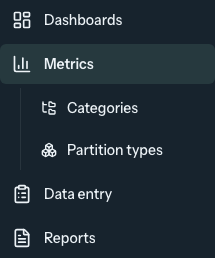
Graphit organizes work into four destinations. The same destinations appear in the desktop sidebar and the navigation bar at the bottom of your phone.
| Destination | Use it to | Related tools |
|---|---|---|
| Dashboards | Review charts and key numbers together. Open a saved dashboard or build a view for your team. | Dashboard filters, widgets, sharing, and favorites. |
| Metrics | Find a measurement, review its trend and entries, and manage how it is collected. | Categories organize metrics; Partition types define dimensions such as service or age group. These links appear beneath Metrics while you are working in that area. |
| Data entry | Choose a form and record numbers. Owners and administrators can create forms; editors can update existing forms. | Pin frequently used forms in Data entry to keep them close. |
| Reports | Build, generate, review, and distribute reports. | Templates appears beneath Reports while you are working with reports or report templates. |
The highlighted destination shows the area you are working in, including detail and editing pages. For example, a metric's edit page stays within Metrics; a template's editor stays within Reports.
Move between tasks on your phone
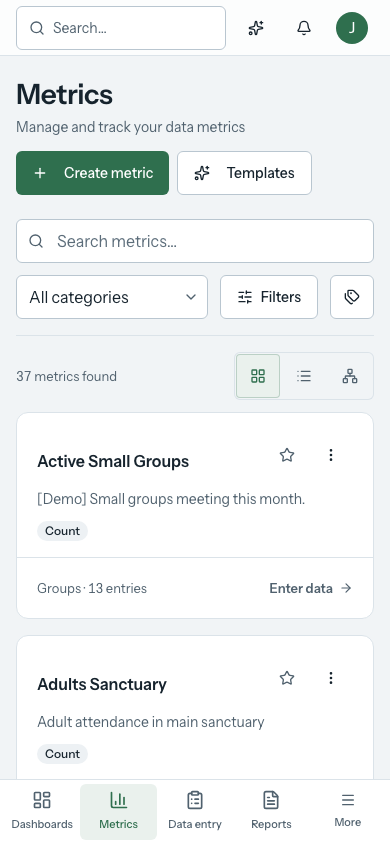
Tap Dashboards, Metrics, Data entry, or Reports in the bottom navigation bar. These destinations stay available while the page scrolls. The bar occupies its own space below the page so it does not cover the page's save controls.
Tap More for the full navigation drawer. It includes your favorites, the assistant, setup help, and the management destinations available to your role. The organization switcher is at the top of this drawer.
Choose a destination to close the drawer and continue. You can also close it with the close button, by tapping outside it, or by pressing Escape when using a keyboard.
Keep frequent work close
Select the star on a dashboard, metric, or report to add it to Favorites. Your favorites appear in the sidebar and in the phone's More drawer.
Forms use a separate shortcut: open Data entry, choose Form options on a form, and select Pin form. The form appears in Pinned by you at the top of Data entry. Choose Unpin form from the same menu to remove that shortcut.
Favorites belong to the current workspace. Switch organizations before looking for another organization's items.
On desktop, choose Collapse sidebar at the bottom of the sidebar for more room to work. The compact rail keeps the same task destinations; hover or focus an icon to see its label. Choose Pin sidebar open to restore the full navigation and related links. Graphit remembers your choice on this browser.
Search instead of browsing
Select the search control at the top of the app, or press ⌘K on Mac or Ctrl+K on Windows, to open workspace search.
- Type the name of a dashboard, metric, category, partition, report, or settings page.
- Use the arrow keys to move through the results, or point to a result.
- Press Enter or select the result to open it.
- Press Escape to close search.
Search combines workspace content with navigation destinations. If an item is not in the current list, try a distinctive word from its name. Available content and actions depend on your access.
Find connections and administration
Owners and administrators have two management destinations:
- Integrations opens connected services and integration setup directly. For Rock connections, this is where you review measurements and mappings.
- Settings opens the organization directory: workspace information, branding, people and access, data configuration, and billing.
If a linked Rock connection still needs its guided setup, Finish Rock setup stays available in the navigation. Getting started opens the workspace setup checklist.
The account menu in the top-right corner contains your profile, appearance preference, feedback, and sign-out. Organization settings affect the workspace; your profile controls your own account.
Switch organizations
Select the workspace name or logo at the top of the sidebar. On a phone, open More first. Choose another organization from the list. The switcher also offers Create organization where available.
Before entering data or changing settings, check the workspace name so you are working in the intended organization. An administrator impersonating a user sees the impersonated organization pinned until that session ends.
Ask for help in context
Choose Ask Graphit in the navigation, select the assistant button in the top bar, or press ⌘J / Ctrl+J. The assistant uses the page you are viewing as context. The assistant is shown only when it is included and enabled for your workspace.
For the keyboard shortcut reference, press ? outside a text field, or ⌘/ / Ctrl+/. Press Escape to close menus and dialogs.