
Change color theme
Build and complete data-entry forms
A form groups metrics that people record together. Use a short form for a recurring task, such as entering weekend attendance after each service.
Owners and administrators can create forms. Editors can complete forms and update existing forms where their access allows it.
Build a form
- Open Data entry → Create form.
- In Form details, enter a name and a short description of when and how to use the form.
- Choose an Entry layout.
- In Add metrics, find the first metric and add it.
- Add compatible metrics, then arrange Selected metrics in the order people should enter them.
- Choose Create form.
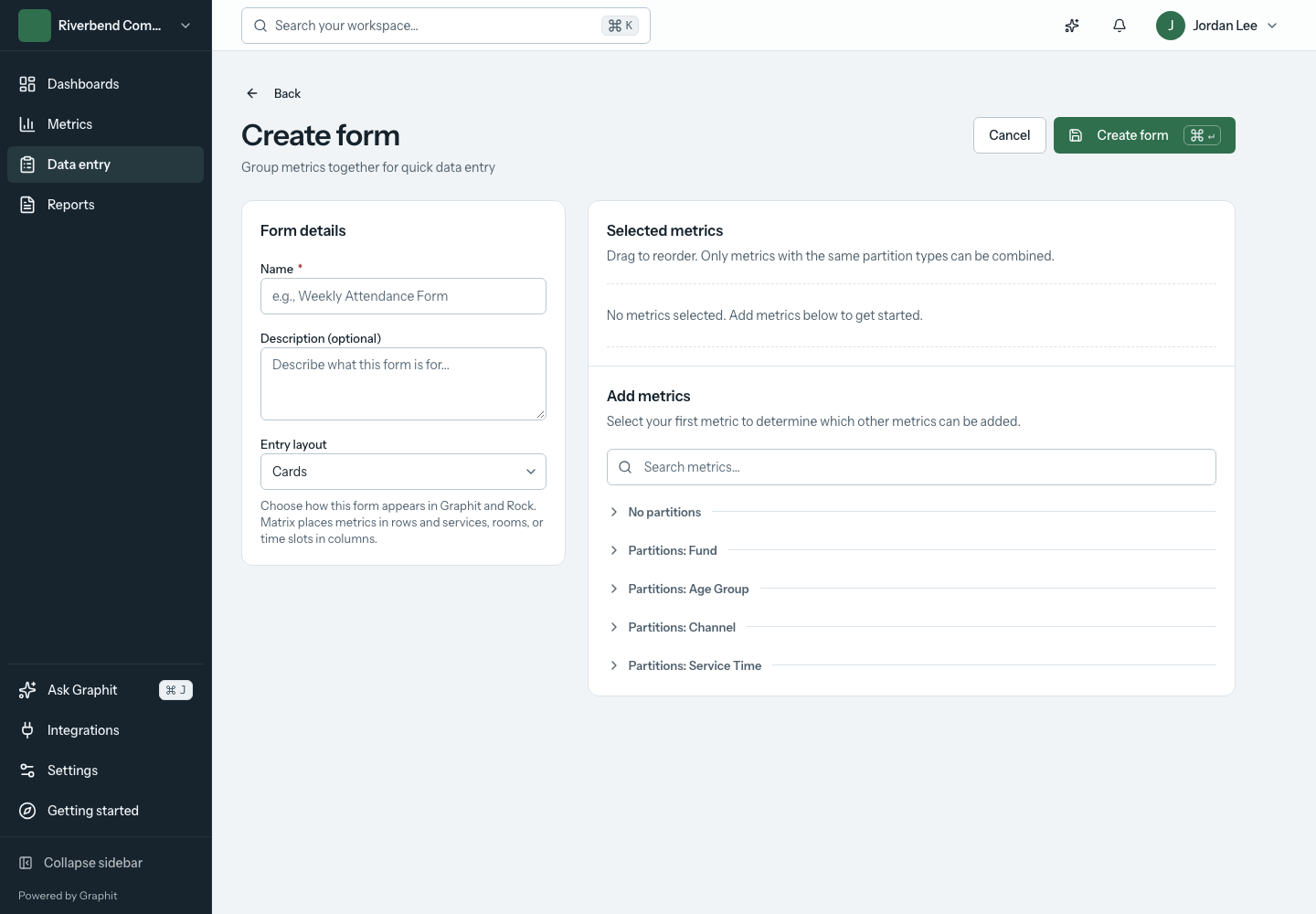
The setup and metric-selection areas sit beside each other on larger screens and stack on phones.
The first selected metric determines which other metrics can be combined. Metrics on one form need compatible partition types. If an expected metric is unavailable, compare its breakdowns with the metrics already selected. Create separate forms when the collection tasks use different breakdowns.
Choose Cards or Matrix
| Layout | Best for |
|---|---|
| Cards | A short sequence of fields, especially when people enter data from a phone. |
| Matrix | Comparing or entering several metrics across service times, rooms, or similar choices in a grid. |
The saved layout is also used when the form is displayed in Rock. On a narrow screen, a wide matrix may need horizontal scrolling; Cards is often easier for a quick mobile task.
Enter values
- Open the form from Data entry.
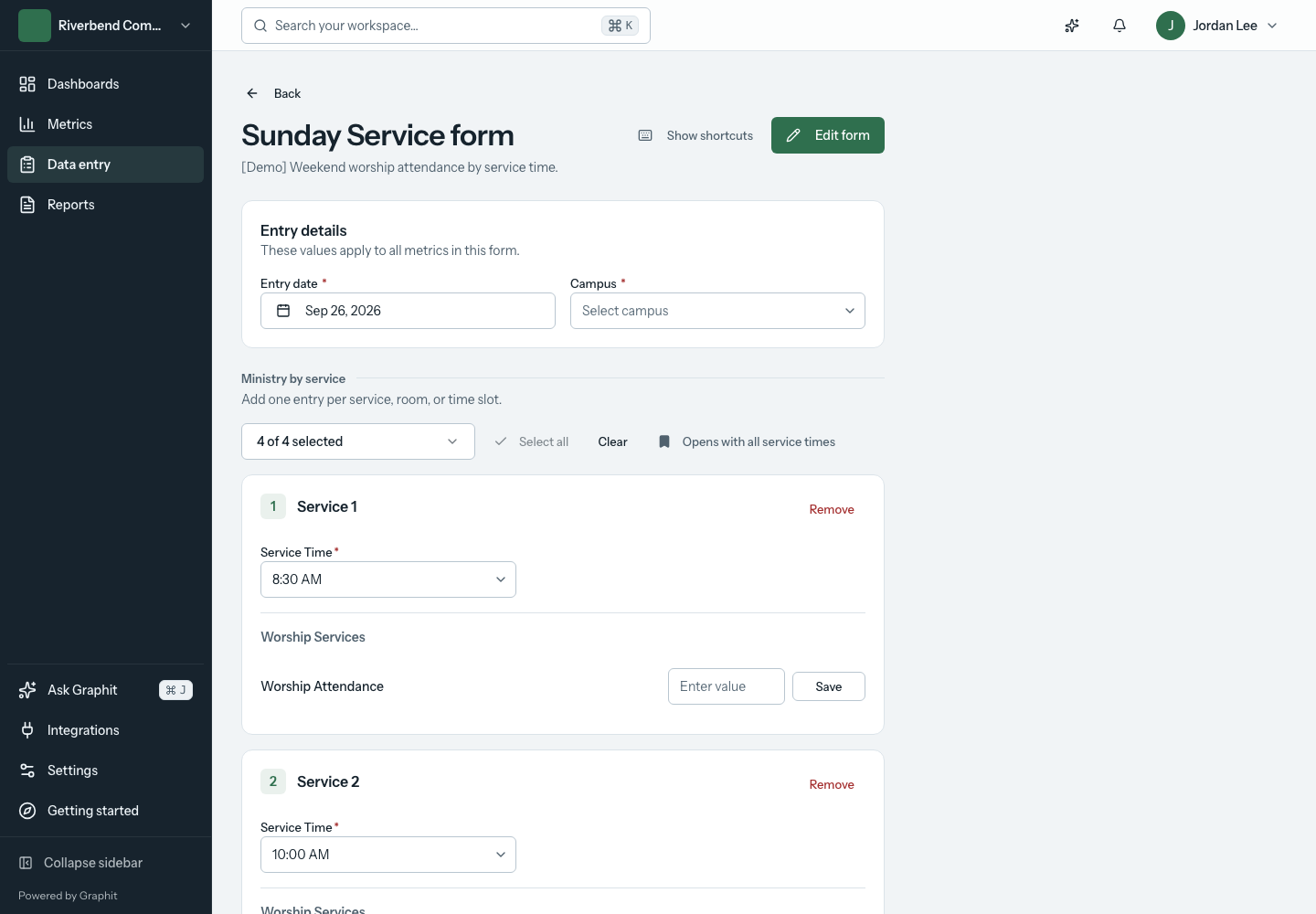
- Check the date before entering values. Use the date the measurement belongs to, which may differ from today.
- Select the campus when the workspace requires one.
- Choose the relevant breakdown values if the form has partitions.
- Enter the values in the displayed fields.
- Review the unsaved changes and save them using the form's save action.
Do not assume an empty field means zero. Enter 0 when the measured result really was zero; leave uncollected values empty rather than inventing a measurement.
Graphit shows errors next to fields that need attention. When a campus is required, choose one before trying to save again. After saving, review the success state and recorded values before moving to another date or location.
Work with repeated breakdowns
A partitioned form may show one set of fields for each selected value or combination. For example, a service-time form can display separate entries for 9:00 AM and 11:00 AM.
Use the selection controls to show the values you need. When the form offers a remembered selection, save that preference for the recurring task. Existing recorded values may remain visible even when they are outside the initial selection.
Correct or remove a value
To change a saved value, open the form again for the same date, campus, and breakdown, or edit the entry from the metric's Entries table. Owners and administrators can also delete an entry that should not exist, such as a duplicate. Deleting removes the value from every dashboard and report that uses the metric.
Stay within your plan's limits
Each plan includes a number of data entries per calendar month. When you have used 80% of that allowance, Graphit shows how many entries you have used this month. At the limit, Add entry and Import spreadsheet are unavailable until the next month or a plan change, and the notice links to Upgrade. See plan limits.
Use keyboard entry
Choose Show shortcuts on the form to see its available keyboard shortcuts. Tab moves through fields. The save controls display their keyboard hint where supported. On a phone, use the persistent task navigation to return to Data entry without reopening the main menu.
Edit a form safely
Use Edit form to change its description, layout, selected metrics, or ordering. Changes to a form affect the collection interface; check the underlying metric definition when the unit or meaning of a number needs to change.
A lock marks restricted metrics in the form builder. You can add them, but people outside a metric's audience do not see its fields when they open the form.
See metrics for metric definitions and troubleshooting for empty or missing entries.