
Change color theme
Ask Graphit
The assistant helps you understand your metrics and move from a question to a useful next step. It can read data available to your role, compare periods, prepare drafts for review, and help you find controls in Graphit.
Open Ask Graphit in the navigation, select the assistant button in the top bar, or press ⌘J on Mac / Ctrl+J on Windows. On a phone, open More to find Ask Graphit. The assistant must be included and enabled for your workspace.
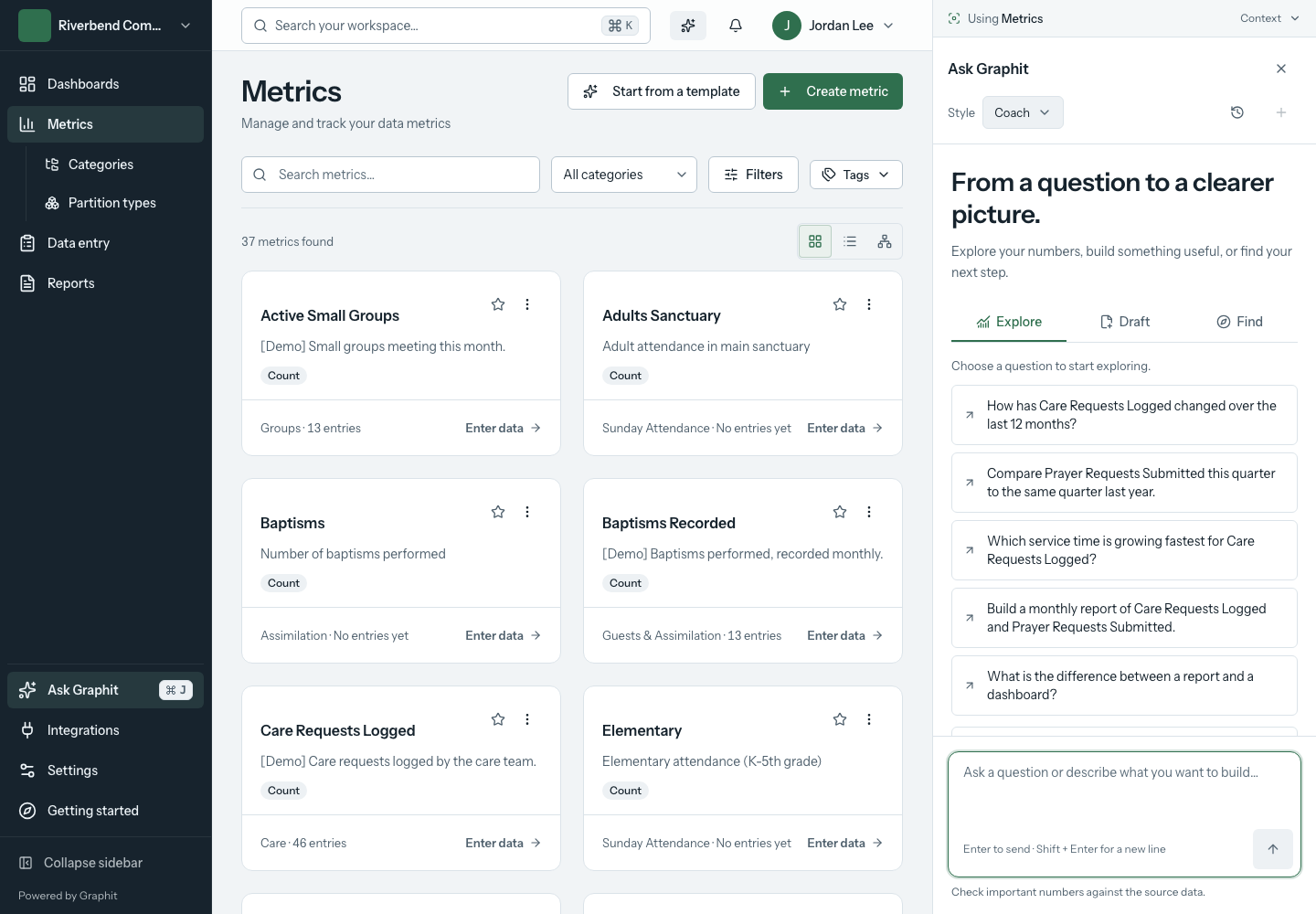
Start with a task
A new conversation has three tabs. Choose the one that matches what you want to do.
| Tab | What it does | What happens when you choose a starting point |
|---|---|---|
| Explore | Understand numbers, changes, and available metrics. | A suggested question is sent immediately. Suggestions may relate to your current dashboard, metric, or setup page. |
| Draft | Prepare a dashboard, report, or target. Administrators can also prepare a calculated metric. | An editable prompt appears in the message box. Review or personalize it, then select Send. |
| Find | Locate a destination or a control. | An editable question appears in the message box. Send it when it says what you need. |
You can also write your own question. Press Enter to send or Shift+Enter to add a line. A question you have not sent stays in the message box if you close and reopen the assistant.
Where do I…? starts a navigation question without sending it. Complete the question in the message box first.
Check the page context
The strip at the top of the assistant shows the current context, such as Using This dashboard or Using This metric. Expand Context to see the page and the filters shared with the assistant.
Context updates as you navigate. A question from a metric detail page identifies that metric; a question from a dashboard identifies that dashboard. Where supplied by the page, the context also includes a period, campus selection, or grouping.
This is not a copy of everything visible on your screen. If a date range, campus, service, or other detail matters, include it in your question and check that the answer uses it.
For example:
Compare this metric in the first quarter of this year with the first quarter of last year. Use weekly totals and call out missing weeks.
Explore and verify numbers
Useful questions name the metric, the period, and the comparison you need. Use the metric names in your workspace. These examples are prompts to adapt, not claims about your data:
- “Show the weekly trend for Weekend Attendance over the last 12 weeks.”
- “Compare First-time Guests this quarter with the same quarter last year.”
- “Which metrics changed the most this month compared with last month?”
- “Does the drop reflect missing entries or a change in recorded values?”
The assistant may answer with text, a chart, a comparison, or a table. Check the dates, grouping, campus scope, and underlying entries before relying on a conclusion. A lower total alone does not explain why something changed.
While a response is running, the activity area shows its progress. Select Stop to stop the current response. You can write the next question while it works; sending becomes available when the current response ends.
After a response finishes:
- Expand its step summary to see the work it performed.
- Select Copy answer to copy its text, including Markdown formatting. Chart images and interactive cards are not included.
- Use Good answer or Bad answer to leave feedback.
- Ask a follow-up in the same conversation to refine the question.
Review a draft before saving
Editors and administrators can ask for dashboard, report, and target drafts. Administrators can also draft calculated metrics built from existing metrics. A calculated metric can combine values into a total, ratio, or period average; use the normal metric setup flow for a manually entered metric.
- Open Draft and choose a starting point, such as Build a dashboard.
- Edit the prepared prompt to explain your audience, metrics, and intended result.
- Select Send. Answer any follow-up questions about dates, filters, layout, or goals.
- Review the draft card. Check its name, definition, scope, and available preview.
- Select its Save action to apply it, or Not now to leave it unsaved.
- Use the confirmation's Open link to inspect the saved item in Graphit.
Asking for a draft does not save the item. The save action checks your current permissions again. If a draft has expired, ask the assistant to prepare it again.
The same conversation can prepare changes to an existing dashboard or report, a report email schedule, or a report template when your role permits it. Be specific about what should change. Review schedule recipients and timing before saving.
Viewers can explore data and ask navigation questions. The Draft tab explains when editor access is needed. In a workspace with a read-only subscription, drafting is paused until write access is restored.
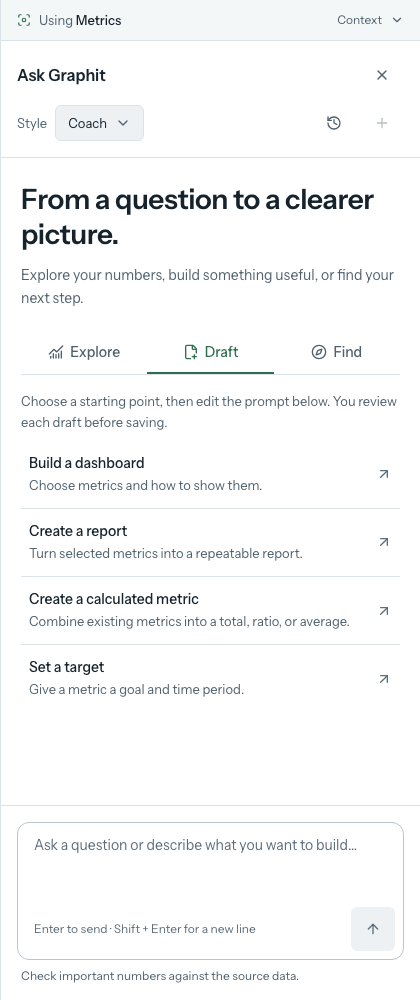
Find a control
Open Find or select Where do I…? and ask a specific question:
Where do I share this dashboard with my team?
When the assistant returns a navigation card, select its action. It can open the destination and highlight the relevant control. If the control is inside a menu or requires edit mode, the highlight first shows what to open. You choose that control; the highlight then moves to the destination.
On a phone, a destination in the full navigation may first highlight More. On phones and tablets, the assistant closes when it needs to reveal a highlighted control. Reopen Ask Graphit to continue the conversation.
If a control is unavailable for your role or no longer visible, Graphit gives a location hint instead of pretending it opened the control. You can also use workspace search and navigation.
Continue earlier work
Select Conversation history in the assistant header. Search by a word in a conversation title, then choose the conversation to reopen it. Clear the search to see the full list again.
Select New conversation for a separate topic. This starts a fresh conversation rather than deleting the previous one; reopen earlier work through history.
The Style picker changes the assistant's response style: Pastor, Coach, Analyst, Mentor, Encourager, or Strategist. It does not change your permissions or the underlying data. The selected style is used for the next question and remembered in this browser.
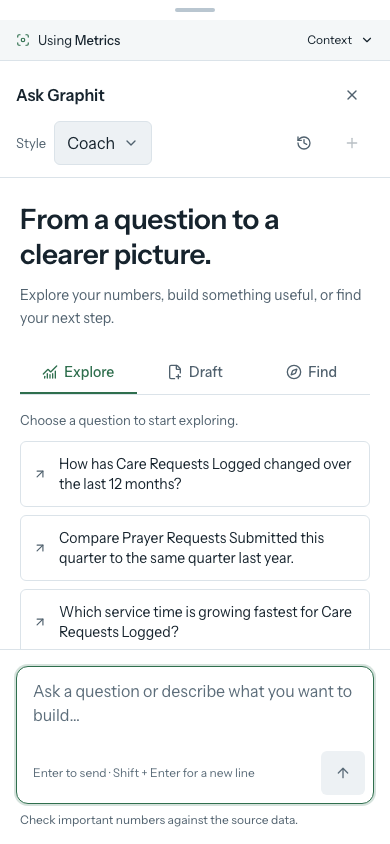
On desktop, the assistant sits beside the page. On phones and tablets, it opens as a full-screen sheet so the page and conversation are not squeezed into narrow columns. Use Close assistant, press Escape, or drag the top handle downward to return to the page. Closing the panel does not erase the conversation.
Get help with Rock setup
On integration and Rock measurement pages, available suggestions can help administrators discover measurements and understand setup requirements. The assistant may prepare a Rock measurement draft when the connection and organization allow it.
Creating a measurement in Rock requires more than ordinary read access:
- The organization must allow assistant-created Rock metrics in Settings → AI.
- Rock must allow Graphit to create metrics through its plugin settings.
- Required campus mappings must be complete.
- You must review the proposed measurement and explicitly confirm it.
The assistant explains an unmet requirement and can point to the relevant setup page. After you resolve it, return to the draft or ask for another proposal. A Rock setup request can run in the background; read its progress and final result before assuming the measurement is connected.
Use the assistant on a phone or tablet
On smaller screens, the assistant opens over the workspace so answers and controls have room to fit. Close it to return to the page. Your unsent question stays in the composer.
When the assistant cannot continue
| What you see | What to do |
|---|---|
| Assistant unavailable or not set up | Check with an owner or administrator that the assistant is included and enabled for the workspace. |
| Cannot reach the assistant | Check your connection and select Try again. |
| Monthly allowance used up | Wait for the next monthly reset, or ask an owner or administrator to review the AI allowance in settings. |
| A failed response | Select Try again where offered. The unsent question is preserved when sending fails. |
| Lost touch with the assistant | Reopen the conversation from history to check for the final response. |
| Drafting or saving unavailable | Check your role and whether the workspace is in read-only mode. |
| Copy failed | Select the answer text and copy it manually. |
For your first question, open a metric or dashboard you know well. Ask for a comparison you can check, then use the same conversation to explore the next question.