
Change color theme
Connect RockRMS
Connect Rock to bring its metrics into Graphit. You can read measurements that already exist in Rock or ask Graphit to create standard measurements there. Setup makes that choice for each measurement before you add it.
Coming from the Rock Shop? Start with Graphit for RockRMS for plugin installation, requirements, and the first-use walkthrough.
Before you begin
You need an Owner or Administrator role in the Graphit organization and an administrator account in Rock. Install the Graphit plugin in the Rock instance you intend to connect. The How to connect link on Graphit's RockRMS integration card opens the plugin installation link and pairing instructions.
Use the address of your Rock server, such as https://rock.yourchurch.org. Graphit must be able to reach that server. A normal plugin installation pairs through the browser; you do not copy REST keys or webhook URLs into Graphit.
Confirm the intended Graphit organization before allowing the connection. A Rock installation pairs with one Graphit organization; connecting it to a different organization replaces its previous authorization.
Connect the two systems
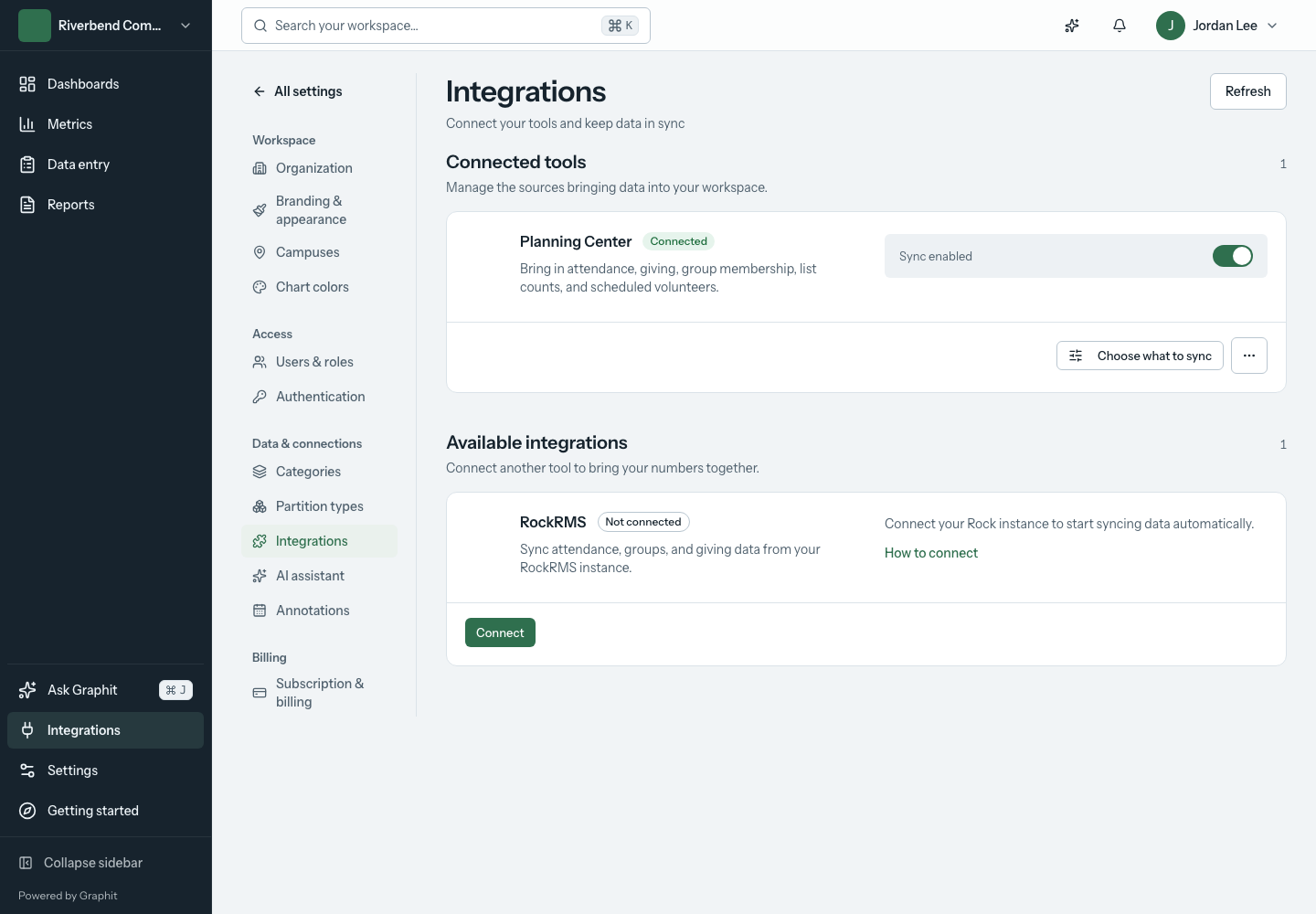
- Open Integrations from the sidebar, or More → Integrations on your phone.
- On the RockRMS card, choose Connect.
- Enter the Rock server URL, then choose Connect again.
- Follow the redirect to Rock and sign in as a Rock administrator if asked.
- On Connect Rock to Graphit, check the Graphit organization. Choose Allow and connect to continue the authorization round trip.
- Return to Graphit. A newly connected Rock opens the guided Set up Rock flow.
You can also begin from Rock's Admin Tools → Installed Plugins → Graphit page using Link Rock to Graphit. Both entry points take you through Graphit organization selection and authorization.
If you leave before finishing, use Finish Rock setup in the navigation, the Finish setup banner, or the RockRMS card's Finish setup button. Save and exit leaves the guided flow with progress saved.
Discover what Rock already has
The Discover step reads metrics, campuses, service times, and the availability of attendance and giving data. It separates current measurements from status snapshots, stopped measurements, empty metrics, and results it could not read.
Review these groups before choosing what to bring into Graphit:
- Ready for your dashboard contains recent values suitable for the starter dashboard.
- Status snapshots describe a point in time. They can be read into Graphit but are excluded from the suggested weekly dashboard.
- Stopped updating lets you choose Keep history or Skip. Historical values can still be useful even when a measurement no longer belongs on the current dashboard.
- No values yet means Rock has a metric definition but has not produced values. Check the explanation: a metric with no schedule needs attention in Rock.
- Couldn’t read yet is an incomplete check. Use Refresh and resolve the connection or plugin issue before treating the result as complete.
Some older plugin versions cannot report exact value dates. Graphit shows an update notice when this affects discovery; do not interpret an unknown date as proof that the source has no history.
Match campuses and service times
The next step connects Rock's campuses and service times with their equivalents in Graphit. These matches determine where imported values belong.
Choose Match all campuses to match names and add missing active campuses in Graphit. Closed campuses are left out. Review the result; duplicate names can require a manual choice. Use Configure manually to select an existing Graphit campus or Add as new campus.
Use Match all service times for the same process with service times. Retired times are left out. If Rock has no service times to match, the page says there is nothing to do.
These actions establish matches and, when needed, create the corresponding items in Graphit. They do not rename your campuses or service times in Rock. Resolve required matches before adding measurements that use them.
Choose measurements and understand what changes
On Measurements, select the rows you want. Open Edit on a row to review its Graphit name, folder, and any source questions.
| Choice | What Graphit does | What happens in Rock |
|---|---|---|
| Use the one already in your Rock | Creates the Graphit metric and connects it to the selected Rock metric. | Reads its metadata and values. A metric owned by Rock continues to calculate on its Rock schedule. |
| A standard measurement marked Not in your Rock yet — Graphit creates it there for you | Creates the corresponding Graphit metric and its synchronization. | Creates the measurement in Rock using the selected answers and schedule. This requires metric-write permission. |
| Create a new one in Rock instead | Uses a new standard measurement instead of connecting the existing candidate. | Creates a new metric; it does not replace the unrelated existing Rock metric. |
| A row marked Can’t bring in yet | Leaves the measurement unchanged. | No setup occurs until the stated compatibility, permission, or matching issue is resolved. |
For a creation row, inspect What Graphit creates in Rock. Answer the questions that apply, such as groups, rooms, campuses, or online channels. A single standard measurement can produce more than one metric.
Choose Add selected once the list is correct. Follow each row's result. If some rows fail, use Retry the ones that didn’t work after resolving their error; the successful rows remain set up.
Service times suggested from real check-ins
For weekend measurements, Graphit suggests which services to count. It uses the service times set up for your campuses, plus any schedule that had weekend check-ins in at least 6 of the last 13 weeks. When every matched campus is covered, the answer is filled in for you, with a note such as “Using your 3 services” and the reason. Choose Change to review the list, and Show all to see every schedule. This also works when Rock has no weekend service times configured, as long as check-ins use a schedule.
Midweek measurements always ask. Schedules with recent weekday check-ins are listed first.
Graphit asks instead of suggesting when no schedule is marked as a weekend service or had recent weekend check-ins, when a weekend schedule has no day and time, or when a matched campus has no weekend service. Schedule suggestions need the Graphit plugin 0.7.2 or later.
Recover when Graphit cannot create metrics
If Graphit can read Rock but cannot create metrics, use Save and exit if you are in guided setup. In Rock, an administrator can turn on Metric writes on the Graphit page. Then open Integrations → More RockRMS actions → Settings → Allow creating metrics to authorize again. This recovery is available before setup is finished. Both the authorization and Rock's write setting must allow creation.
What the standard measurements count
Standard measurements that Graphit creates in Rock are weekly SQL metrics. Rock recalculates them on its own schedule, early each Monday. Read what each one counts before comparing it with numbers you already report.
Attendance measurements count check-ins, not headcounts. Weekend Attendance, Midweek Attendance, NextGen Attendance, First-Time Guests, and Room Attendance count people who were checked in and marked as attended. People who are not checked in are not counted. At many churches adults are not checked in to the main worship service, so these numbers often cover kids and students only. Track adult services with a headcount metric, such as usher counts, alongside the check-in measurement.
| Measurement | What it counts |
|---|---|
| Weekend Attendance | Check-ins on Saturday or Sunday in the selected areas and services, per campus, service time, and week. |
| Midweek Attendance | The same, for check-ins on any other day. |
| NextGen Attendance | Weekend check-ins in kids, students, and nursery areas, per campus and age group. |
| First-Time Guests | Weekend check-ins that Rock flagged as a first visit. Guests who are not checked in are not counted; use a connection card or guest form for them. |
| Room Attendance by Location and Room Capacity by Location | Weekend check-ins per room, and each room's capacity. Together they give room utilization. Rooms without a capacity are skipped. |
| Giving | Contributions to the selected accounts and their sub-accounts, per campus and week. Only contribution transactions count; event registration and invoice payments are excluded. The campus comes from the account, or from the giver when the account has none. |
| Giving Units | Givers counted by Rock's giving ID, so a household giving together counts once. Sub-accounts are included. |
| Volunteers Serving | People with attended check-ins in the selected serving group types, on any day. Scheduled volunteers who did not check in are not counted. |
| Groups Participation | Two metrics, Active Group Members and Active Groups, as rosters stood at the end of each week. |
| Steps | Completed steps per campus and step type. |
| Online Attendance | Interactions in the selected online channels, with a separate unique-people count. |
| Connection Status Snapshot | Active people per connection status and campus. |
Distinct counts add up across campuses and teams. In Giving Units, Volunteers Serving, and Groups Participation, each person or giving unit counts once per week. They are placed under one main campus and team: the campus they gave the most to, the campus and team they served with most, or the campus and group type where they hold the most memberships. Campus totals therefore add up to the whole church without counting anyone twice.
When Graphit improves a standard measurement
Graphit updates its standard measurements when it finds a better way to count. The next sync pushes the improved definition to the metrics Graphit created in your Rock. When the calculation itself changes, Rock recalculates the last 52 weeks so past values match the new definition. A wording-only change updates the description without recalculating.
Graphit leaves a metric alone if your church has changed it in Rock since Graphit last updated it, including its title, SQL, partitions, or schedule. An update keeps the metric's category in Rock. Metrics you connected from Rock, rather than asking Graphit to create, are never changed.
Budget measurements
If your budget is stored as ordinary measurements in a separate Rock metric, connect that metric through the regular measurement setup and use it as the chart's target series. A budget does not have to use Rock's Goal measurement type.
Existing connections to Rock Goal measurements continue to synchronize as separate Graphit metrics. Actual values and goal values remain independent, even when they come from the same Rock metric; ordinary actual imports do not include goals. Each source keeps its own synchronized values, dates, campuses, and breakdowns.
Check the budget metric's currency, campus and other partition matches, and dates against Rock. On a dashboard chart, select both metrics and mark their roles under Actuals and targets. See changing budgets and chart calculations.
Use donor, step, and group data
Period-distinct donor sources, completed-step sources, and live group directories require the updated Graphit plugin with those capabilities. An older working connection does not imply that it supports them. Install the compatible plugin in Rock, then use Settings → Check plugin before configuring these sources. Plugin installation is a separate administrator action.
For a donor source, select Giving accounts or leave the selection empty for all accounts. Transactions to include distinguishes all transactions with an identified person from contributions only. Graphit counts each person once across the requested period; a household count or a sum of weekly donor counts answers a different question.
For a step source, choose Step types and, if needed, a specific Completion status. Leaving the status empty includes statuses marked complete in Rock. Use occurrences to count completions or unique entities to count people, according to the metric's purpose.
History to keep refreshed (days) sets the window to reconcile for these private sources. Keep enough history for the comparisons you use. Reconciliation removes missing records only after a complete, successful source response; an error or incomplete response must not be interpreted as deleted data. History outside that window is not reconciled by that run.
For existing Rock metric values, the updated plugin can provide a complete snapshot that includes corrections and removals. Older plugins can replay and update values but cannot prove that an absent value was deleted. If a snapshot is too large or cannot complete, resolve the reported synchronization problem before treating the imported history as current.
Group directories display live group records and leader/member totals rather than importing a new historical metric. Add one through dashboard widgets. Group links open Rock and use Rock's access checks. Graphit does not automatically inherit Rock page or group permissions for its own metrics or dashboard audiences.
Review the starter dashboard
The Review step proposes a dashboard from eligible measurements with current data. Use Remove or Put back on proposed widgets, and read Left out, and why before choosing Create dashboard.
Graphit may wait for the first synchronization before building the proposal. Build now anyway, when available, creates an earlier proposal with the measurements that are ready. Build again refreshes the proposal after more values arrive. You can use Skip for now if you do not want a starter dashboard.
An empty proposal does not mean the connection failed. The page explains whether it needs first values, more recent history, or different measurements. Graphit creates one starter dashboard per Rock connection; an existing one opens for further editing.
Check the first values
The Summary shows what was matched, which measurements were created or read, what is syncing, and what was skipped. Verify those facts even if you skipped the dashboard.
When first values arrive, compare the date, campus, and value with Rock. Choose Confirm if they are correct. Choose Something’s off to open the metric and review its Rock source. Confirming values requires Editor access or higher; connection setup remains an administrator task.
Rock calculates measurements on its own schedule. Graphit-created sources check for new values hourly. Initial history may still be loading, and newly created standard measurements attempt a year of history where source data is available. Sync now imports available values; it cannot make an unrelated, unscheduled Rock metric produce data.
After guided setup, return through Integrations → RockRMS → Manage measurements. Use Choose measurements to add more, Check first values to review pending confirmations, and Refresh from Rock after changes in Rock.
Recover from common setup problems
| What you see | What to do |
|---|---|
| Complete Setup, Retry Setup, or Reconnect on the integration card | Continue authorization. Check the server address if the connection could not be reached. |
| Update the Graphit plugin | Update the plugin in Rock, then use More RockRMS actions → Settings → Check plugin. Return to setup after the capability check succeeds. |
| A campus or service-time matching warning | Return to the matching step and resolve the listed matches. Graphit does not guess ambiguous names. |
| Waiting on Rock or No values yet | Check the metric's calculation schedule and source data in Rock. A successful connection alone does not create values. |
| An expired starter-dashboard preview | Choose Build again, review the new proposal, and create it. |
| A first value looks wrong | Choose Something’s off, check the metric's source and matches, and resolve the difference before confirming. |
For a connection check, open More RockRMS actions → Settings → Check connection or Check again. Last check changes to Working or the returned failure. This confirms the connection check; verify actual metric values separately.
Use Sync enabled to pause or resume the connection. Disconnect requires confirmation and disables its synchronization sources; it is not the same as pausing one measurement.
Continue with metrics or dashboards.